BUYER'S GUIDE · EDITION 0.10.0
Your Halloween, step by step.
From downloading the ZIP to your first controller test. Set everything up on your computer; test the design without streaming or connecting accounts.
Before you begin
- A computer with 64-bit Windows, OBS Studio or Streamlabs Desktop and a Browser source. The complete setup with the controller is designed for Windows.
- An up-to-date desktop browser for the configurator. A mobile controller or macOS/Linux controller is not included.
- A folder where you can save changes. Extract the entire ZIP; keep these folders together:
mandoandprueba-halloween. Do not run only the EXE from inside the ZIP.
The overlay canvas is 1920 × 1080. If you stream at another resolution, fit the entire source to your canvas. Performance depends on the number of layers, your custom images and other running applications.
Included: visual configurator, sample HTML, controller with profiles and hotkeys, eight optional screens, seven DEMO alert designs, a transition with sound, two starter scares, twelve intense scares and atmosphere effects. Resources and credits are included.
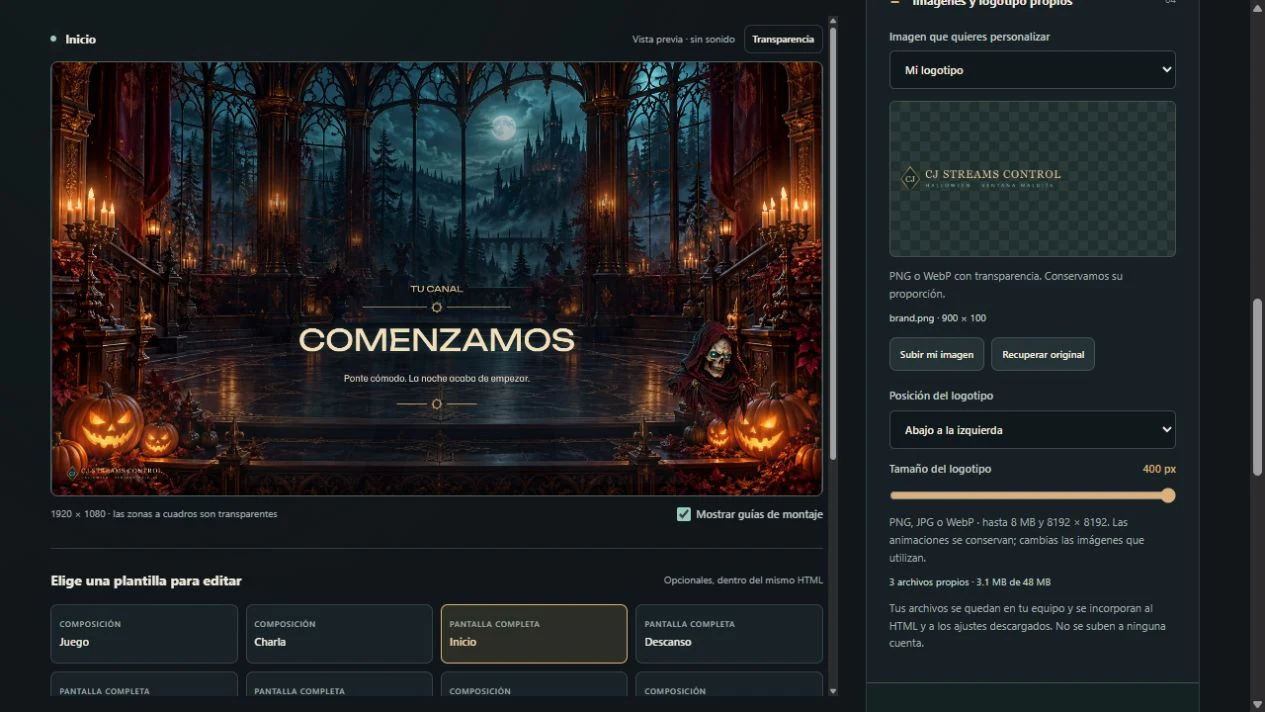
1. Customize and save
- Open CONFIGURAR-HALLOWEEN.html from your download and wait for it to finish loading.
- Enter your channel name. Choose a screen and adjust its text, background, decorations and layout in the preview.
- If you do not use a camera or chat, disable their frames and panels. They are decorative elements; Halloween does not capture devices or add live chat on its own.
- Click Save Settings and keep the JSON file. Then click Download My HTML.
The HTML contains the images, sounds, fonts and animations. Move it to another folder without bringing every resource separately. Use the JSON to reopen your settings in the configurator and continue editing; keep both files.
2. Add it to OBS or Streamlabs
- In your chosen scene, add a source of type Browser.
- Enable Local File and select your exported HTML file.
- Set width 1920 and height 1080. Fit the source to your streaming canvas.
- Add your game or camera sources below the HTML in your streaming software. For real chat, add a separate chat source over the decorative panel.
Starting Soon, Break, Ending, Offline, Game, Chat, Frame and Atmosphere switch inside the HTML. You do not need eight OBS or Streamlabs scenes. To share the overlay between your software's scenes, reuse the same existing source.
3. Set up audio
- In the Browser source properties, enable audio control through your streaming software if you want it in the mixer.
- To hear it yourself, check the source's monitoring settings in advanced audio properties.
- Open the controller and test FOLLOW DEMO. Start at a low volume and adjust the mixer.
ALERT AUDIO controls alerts, transitions and intense scares. SOUND controls the initial Guardian and spider effects. The configurator volume sets a maximum; the controller and mixer can lower it further. Visual tests in the configurator are silent; its Listen button plays the selected sound.
4. Open your controller
- Run
ABRIR-MANDO.cmdfrom the extracted folder. - Keep your HTML visible in OBS or Streamlabs. The controller detects its identity and prepares a profile with Halloween buttons.
- Select that profile. Detection respects your selected profile and customized buttons.
- Test Starting Soon and Break, a DEMO alert and a scare. Press STOP ALL to stop effects, sound, automatic modes and the queue.
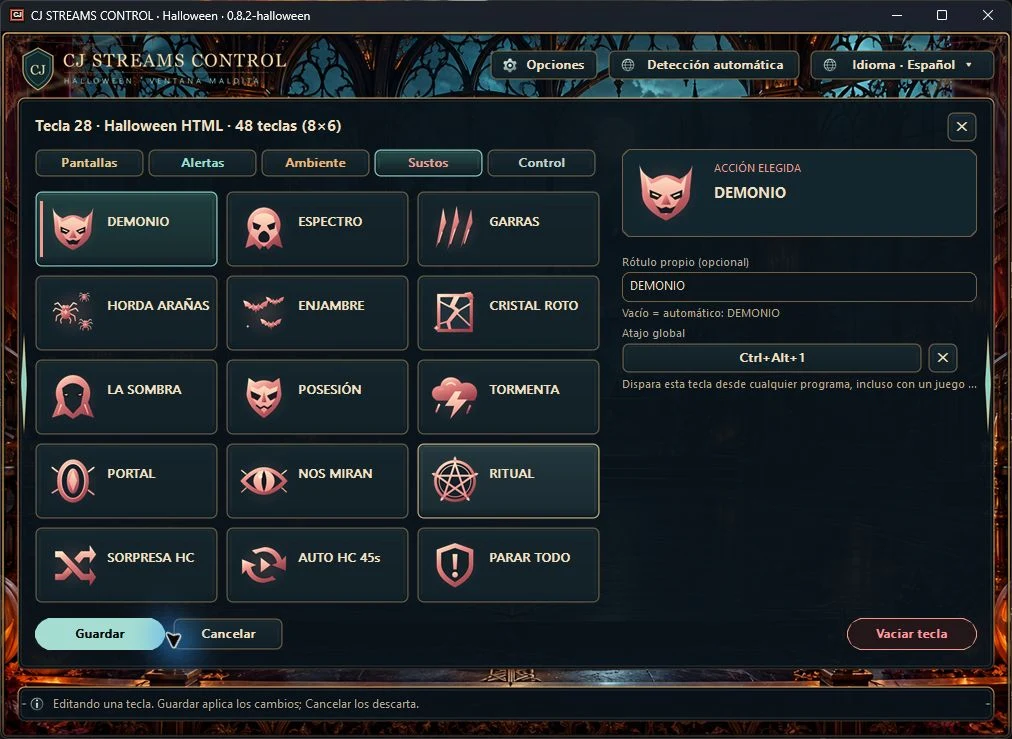
Change the key count and window size; the buttons keep their proportions. The Hotkeys control enables or disables global shortcuts. If another application uses a combination, assign a different one in the key editor.
| Default shortcut | Action |
|---|---|
| Ctrl + Shift + F1…F8 | The eight internal HTML screens |
| Ctrl + Alt + F1…F9 | Guardian, spider, stop scares, allow spiders, automatic mode, fog, sound, restart animation and bats |
| Ctrl + Alt + Shift + F1…F6 | DEMO alerts: follow, subscription, raid, donation, Bits and gift |
| Ctrl + Alt + Shift + F7 / F8 / F9 / F10 | Transition, stop events, KICKs DEMO and alert audio |
| Ctrl + Alt + 1…9 / 0 / F10 / F11 | The twelve intense scares |
| Ctrl + Alt + Shift + F11 | Random intense scare |
| Ctrl + Shift + F11 | Automatic intense scare every 45 seconds |
| Ctrl + Alt + Shift + F12 | STOP ALL |
On small keys, C = Ctrl, A = Alt and S = Shift. Right-click for the full combination. These are factory defaults; your changes take priority.
The controller has five profiles. Save Settings and re-exporting the same overlay preserves its identity. Create Another Independent Overlay generates a new identity for a separate profile. Keep one visible instance per identity; two visible copies block commands to prevent duplicates.
Closing the controller leaves local decorations running, but its buttons, hotkeys and controlled effects stop. Hiding the source or losing the connection stops pending effects. When visible again, check the profile and run a test.
Your images and sounds
Replace backgrounds, logo, frame, characters, alert and transition artwork in the configurator. Change sounds per event too. Animations retain their functionality.
- Images: PNG, JPG or WebP, up to 8 MB per file and 8192 × 8192 pixels. Use transparent PNG or WebP for frames and characters.
- Audio: MP3, WAV or OGG, up to 12 MB and 60 seconds per file. It stops when the event ends.
- Total: up to 48 MB of custom files. If images use too much memory, the configurator may ask you to reduce their resolution.
Restore Original only resets the selected item. Your draft is stored in that browser when storage permits; keep the JSON to transfer it to another browser or computer.
Detailed customization guide →
Updates and backups
Save your HTML and configurator JSON. To preserve buttons and profiles, close the controller and keep a private copy of its folder before updating. Connection files can contain account information: do not include them in screenshots or send them for support. New sales packages do not contain your personal settings.
DEMO alerts and accounts
Real account alerts: validation pending. Seven alert designs and their DEMO buttons are included and work without accounts. Automatic reception of real Twitch and Kick events through Streamlabs is still awaiting verification. This edition is presented with manual controls and DEMO tests, not as a verified integration with real accounts.
Configure the optional connection from Options → Connect Alerts with the controller running. Streamlabs Desktop uses its local source; OBS offers a direct Streamlabs connection using a Socket API Token. Internet, a linked account and events delivered by the provider are required. Only one source is listened to at a time.
You do not need to go live or make payments to test the DEMO buttons. A DEMO button does not verify real event identities or availability.
Your Streamlabs token is not your stream key. Do not share it or paste it into the HTML. Remembering it is optional; if enabled, it is protected for your Windows user.
If something is not working
| What you see | What to check |
|---|---|
| The controller says NO SOURCE | Open the exported HTML, not the configurator; make its source visible and select its profile. Keep all folders together and run only one controller instance. |
| The overlay is small, cropped or stretched | Set the source to 1920 × 1080 and reset any cropping or stretching in its transform. Then fit the entire source to the canvas. |
| There is no sound | Check ALERT AUDIO or SOUND for the effect, the configurator's maximum volume, mixer and monitoring. Check that custom audio contains sound and ends in time. |
| The button works but the hotkey does not | Enable Hotkeys, close the key editor and check the full combination. If there is a conflict, assign an unused shortcut. |
| The spider does not appear | Enable Allow Spiders before triggering the initial effect. Automatic modes start disabled; enable them only when you want them. |
| Commands are blocked or not received | Check for two visible copies with the same identity. Reuse the same source between scenes; create a new identity for an independent overlay. |
| I cannot edit my changes again | Load your saved settings JSON in the configurator. Drafts from another browser or computer are not recovered automatically. |
| The controller will not open or a folder is missing | Extract the entire ZIP again into a writable folder. Include the exact message when requesting help. Do not disable Windows protections. |
Help with your purchase
Email soporte@streams.cjgimenez.com or contact the shop CJGimenez on Ko-fi. Include your order number, controller version, streaming software and version, the steps you followed, and a screenshot without keys or other people's data.
Basic setup guidance and product troubleshooting are included. Custom design, remote installation and general streaming training are not included. Read the usage and purchase terms.